Why team setup matters
BR18 climate documentation requires data from many parties: the developer, the advisor, the general contractor, subcontractors, and suppliers. If this data collection is not systematized from the start, it becomes extremely difficult to piece everything together retroactively.
A45 brings all parties together in one digital workspace where data flows automatically upward from contributors to those who approve.
Roles in A45
The person who creates the project automatically becomes the Owner and has full access to everything. You can invite team members with four additional roles:
Co-owner
- Typical: Advisor, LCA consultant
- Access: Full access — data, dashboard, team management, report generation
- Responsibility: Quality-assure data, change settings, manage the team
- Note: Co-owner is the right role for advisors
Project member
- Typical: Contractor / general contractor
- Access: Add emission data, upload documents, view project status
- Responsibility: Document own A4 and A5 emissions
Contributor
- Typical: Subcontractor
- Access: Own data only
- Responsibility: Upload documentation for own deliveries
Supplier
- Typical: Material supplier
- Access: Delivery-related emissions
- Responsibility: Document transport and delivery data
How to invite team members
Step 1: Open the Team page
- 1.Go to your project
- 2.Click Team in the project navigation
Step 2: Add a team member
- 1.Enter their email address
- 2.Select a role from the dropdown
- 3.Send the invitation

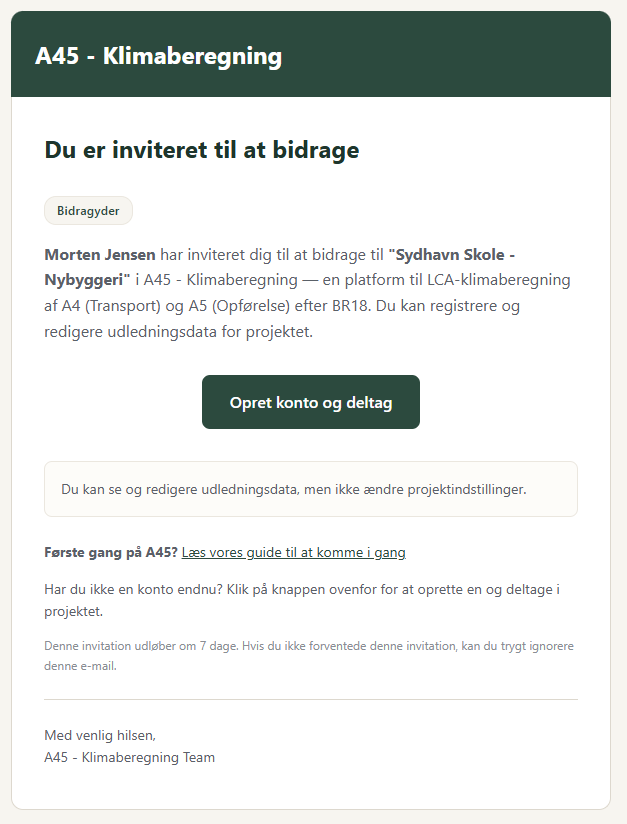
The invitee receives an email with the invitation and a link to the relevant guide.
Step 3: Confirm the team
Statuses: Pending (sent but not accepted), Active (accepted)
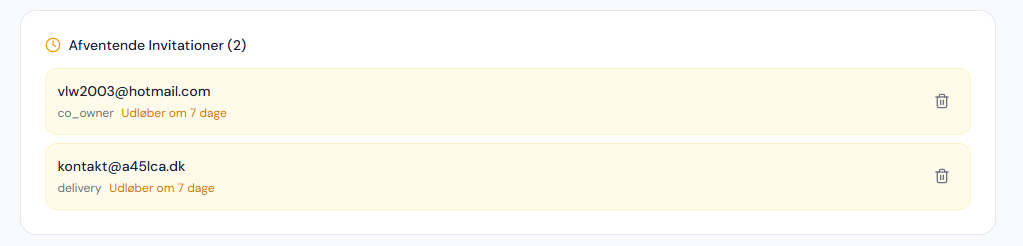
The snippet above is from the Team page inside your project.
Who should you invite and when?
- 1.First: Advisor as Co-owner
- 2.Next: General contractors as Project member
- 3.Ongoing: Subcontractors as Contributor
- 4.Ongoing: Suppliers
The earlier you get all parties onboard, the better.
What does the invitee see?
- 1.An email with: project name, role, link, guide link
- 2.After login: only invited projects
- 3.View depends on role
Share the Guide for invited users with everyone you invite.
No extra cost for your team
- Free account
- No user licenses
- No subscription required
Manage your team
- Change roles
- Remove team members
- View activity log
Best practices for team setup
| Do | Avoid |
|---|---|
| Invite advisor as Co-owner from the start | Wait to invite until the project is underway |
| Use the Contributor role for subcontractors | Give everyone full access |
| Invite suppliers on an ongoing basis | Collect all data yourself without supplier input |
| Check team status regularly | Ignore pending invitations |
Frequently asked questions
No, only their own.
Yes, with different roles.
Resend the invitation or add them manually.
Yes, on the Team page.
In the project navigation.
The Owner created the project. Co-owners have the same access.